 PowerScreen
Windows · macOS
Record your screen. Then make it easy to follow.
PowerScreen records a display or a window and opens the recording in a full video editor. The pointer is kept apart from the picture, so you can enlarge it, smooth it and zoom in on what you clicked after you have stopped recording.
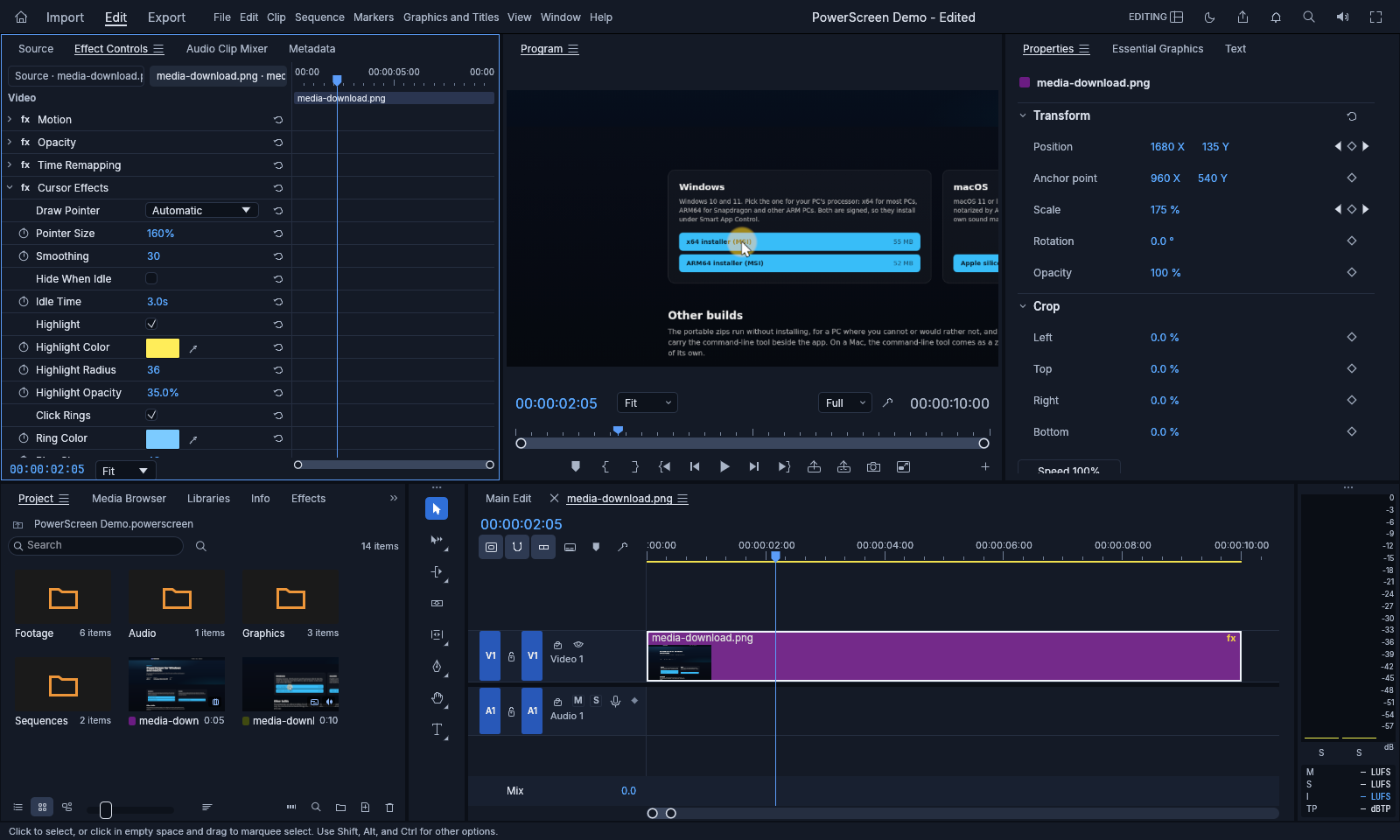
For demos, training, tutorials and presentations. Shown: a recording zoomed in on a click by Auto Zoom, with the pointer drawn larger by Cursor Effects.
Why it is built this way
Most of a good screen recording happens after you stop.
The take itself is rarely the hard part. What makes a recording easy to follow is the work afterwards: a pointer people can find, a closer look at what you clicked, captions for anyone watching without sound. PowerScreen records with that in mind.
The pointer is recorded on its own
PowerScreen keeps the pointer out of the picture and writes down where it went, what shape it had and when you clicked. That is what lets you make it bigger, steadier or easier to see later, without recording again.
Recording and editing in one program
When you stop, the recording opens in a new sequence, ready to cut, title, caption and export. There is no file to find, import or convert first.
It all happens on your computer
Recording, transcription and editing run on the machine in front of you. There is no account to make, and your recordings are not uploaded anywhere.
Using it
From the first take to the finished file.
Record a display or a window
Pick a display, every display at once, or one window, and a frame rate, then add your microphone and the sound the computer is playing. A window is followed as it moves. While PowerScreen is minimised, F10 stops and F9 pauses (⌥⌘2 and ⇧⌘2 on a Mac). On an NVIDIA graphics card the card does the encoding, and a recording cut short by a crash loses at most its last second.
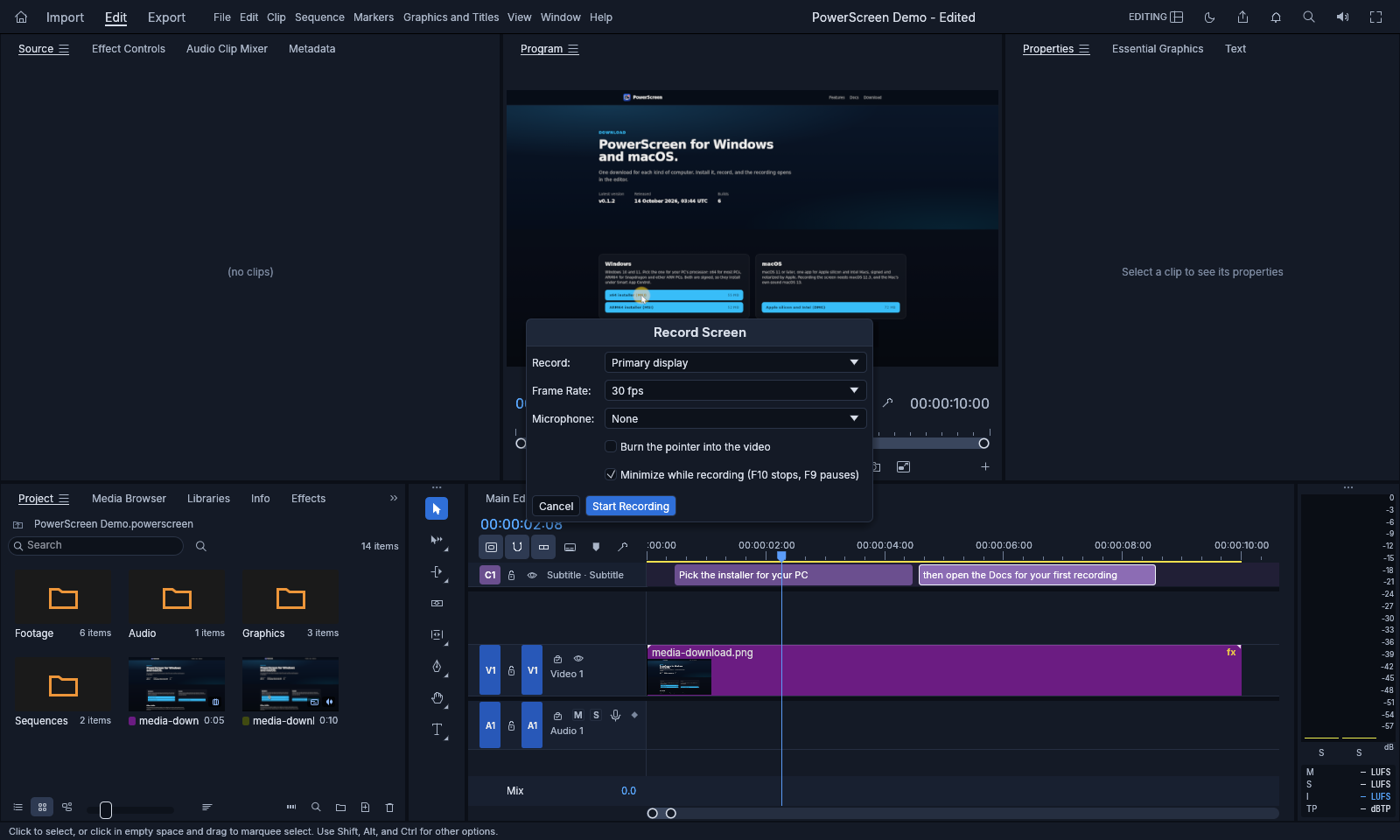
Cursor Effects, after the fact
Every new recording gets Cursor Effects in Effect Controls. Make the pointer larger, smooth out its movement, hide it when it sits still, put a soft highlight under it and a ring at every click. Each one is a switch you can turn off, and none of them is baked in.
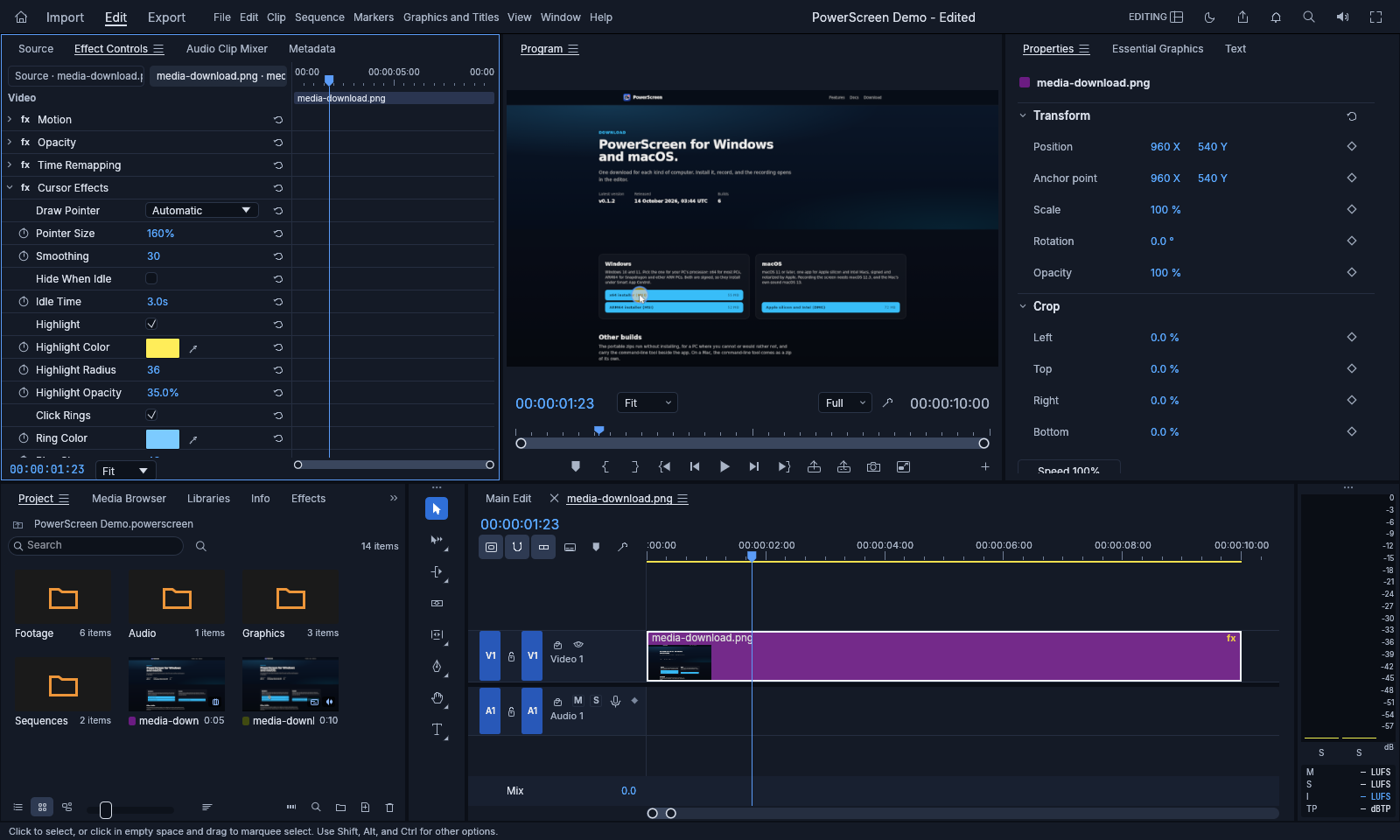
Zoom in on what you clicked
Clip ▸ Auto Zoom from Clicks reads the clicks in the recording and moves the picture in before each group of them, holds, then pulls back out or pans on to the next. You choose how far, how long and how quickly. The result is ordinary Position and Scale keyframes, one undo step, which you can adjust like any others.
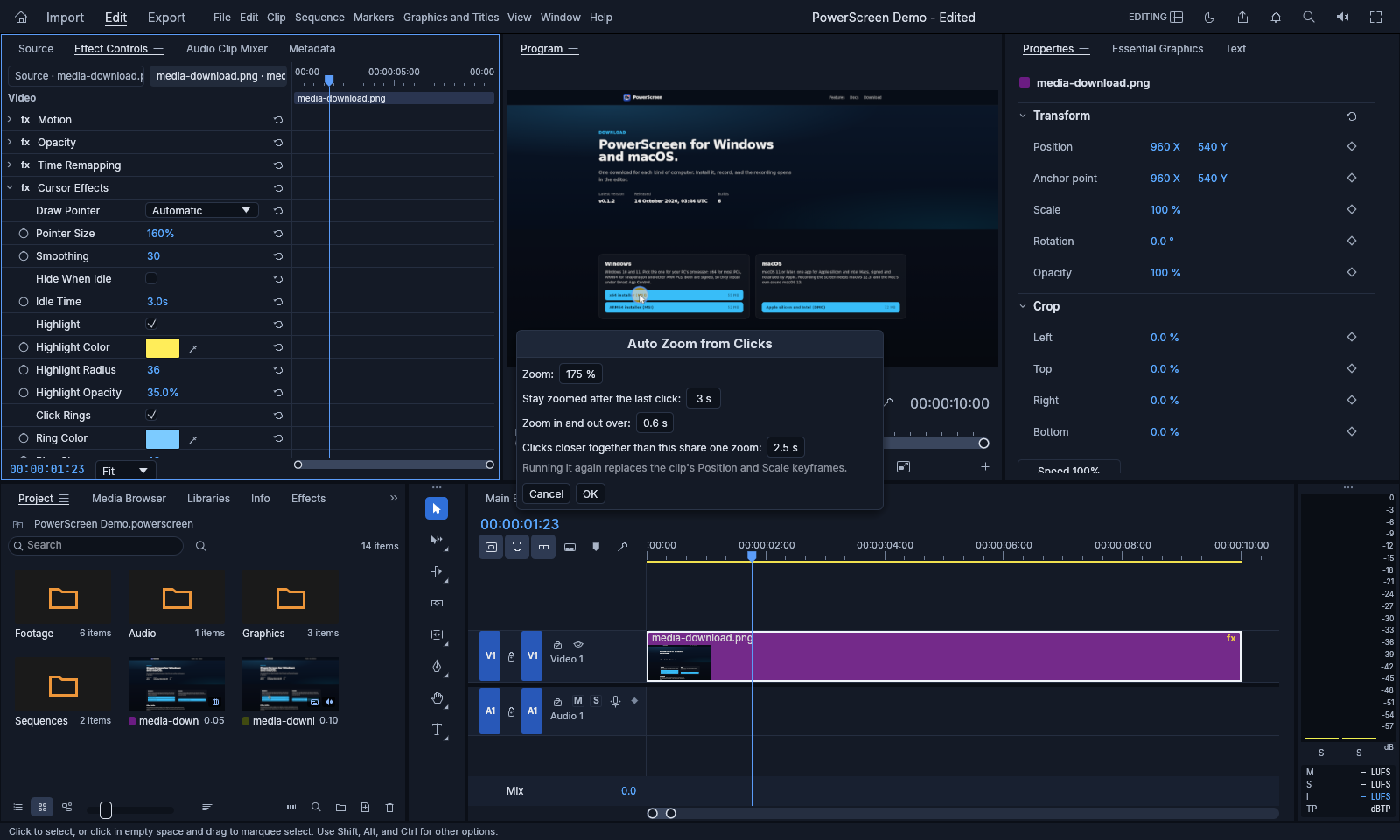
Captions from what you said
Transcribe a clip or a whole sequence on your own computer and turn the transcript into captions. Show them as blocks, word by word, or with each word highlighted as it is spoken, in the font, size, colour, box and outline you choose.
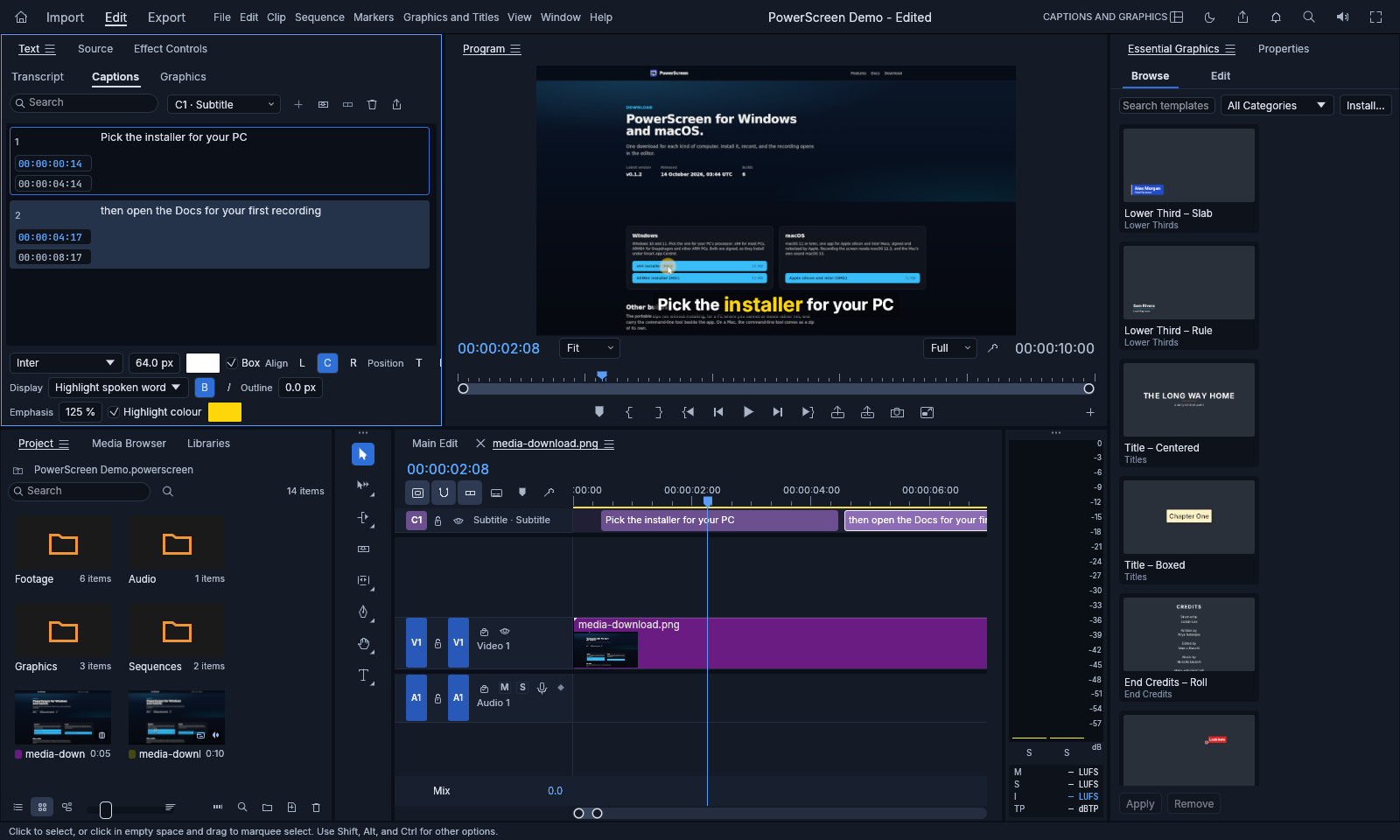
A full editor when you need one
Underneath is a complete video editor: a multi-track timeline, effects and transitions, titles, keyframes, colour correction and an audio mixer. Export to H.264, HEVC, ProRes or DNxHR, or an animated GIF for a README.
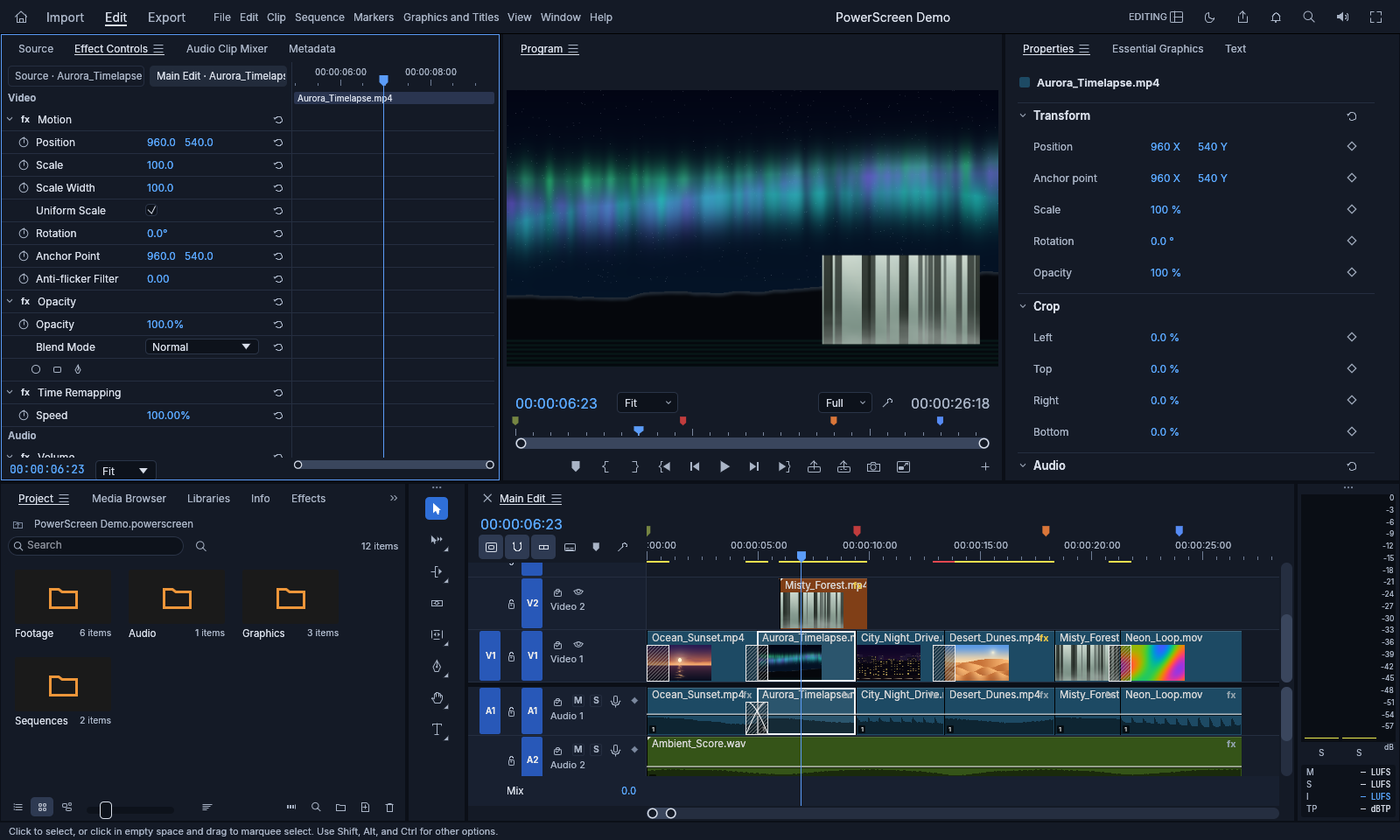
Private by design
Recorded, transcribed and edited on your computer.
No account, nothing uploaded
PowerScreen asks for no sign-in and sends your recordings nowhere. They are files on your disk, and they stay there until you move them.
Speech to text on your own machine
Transcription runs on your computer with a Whisper model. The model is downloaded once, the first time you transcribe, and checked before it is used. After that, transcribing needs no connection at all.
Nothing reporting back
The app has no analytics, no advertising and no usage tracking. If something goes wrong, the details go into a log on your own computer.
Questions
What people ask first.
+Which computers does it run on?
Windows 10 and 11, on x64 and ARM64 PCs, and macOS 11 or later on Apple silicon and Intel Macs. Recording the screen on a Mac needs macOS 12.3 or later, and recording the Mac's own sound needs macOS 13 or later.
+Is it signed?
Yes. The Windows installers are signed with Azure Trusted Signing, so they run under Smart App Control, and the Mac app is signed with Unidatum's Developer ID and notarized by Apple.
+Can I change the pointer after recording?
That is the point of keeping it apart. Its size, smoothing, highlight and click rings are all settings in Cursor Effects, and you can change them as often as you like. If you would rather have the pointer in the picture, tick Burn the pointer into the video before you record.
+Can I record a single window?
Yes. PowerScreen follows the window as it moves, so it stays in frame. You can also record one display, or every display at once.
+Does it need the internet?
Only to fetch the speech-to-text model, once, the first time you transcribe (and a voice, the first time you make a narration). Recording, editing and exporting work without a connection.
+Which languages does speech to text understand?
The default model recognises many languages and detects which one is spoken. Two English-only models are there for English recordings.
+What can I export?
H.264, HEVC (with the hardware encoder of an NVIDIA card on Windows, or of the Mac), ProRes, DNxHR and animated GIF. Captions export to SRT, WebVTT and other caption formats.
+Which languages is the app in?
English, Japanese, Spanish, Brazilian Portuguese, Ukrainian, Simplified Chinese, German, Russian, French, Indonesian and Korean.
Make your next demo the easy kind to watch.
Install it, choose File ▸ Record Screen, and stop when you are done. The recording is waiting in the editor with Cursor Effects already on.